

The process is quite simple. You'll add your company email to the Gmail app on your phone. Follow these steps.
1. Open your Gmail profile
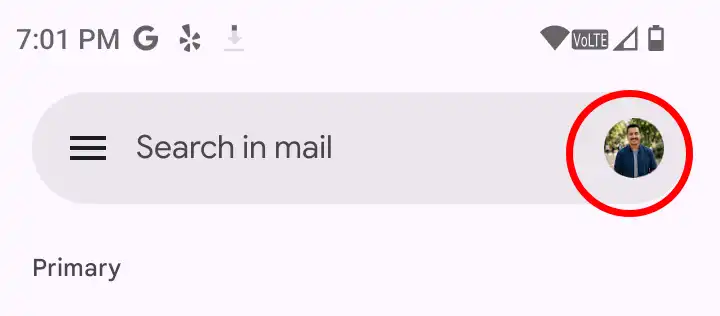
In the Gmail app, tap your profile picture to view your account.
2. Add a new account
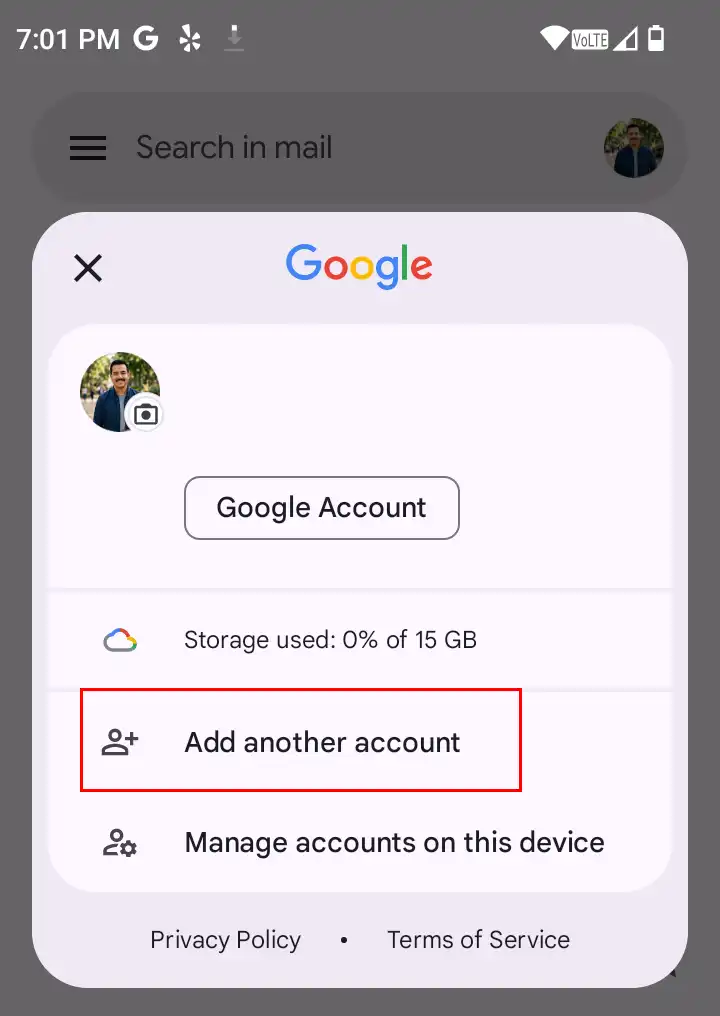
Choose the option to add a new account.
3. Choose "Other"
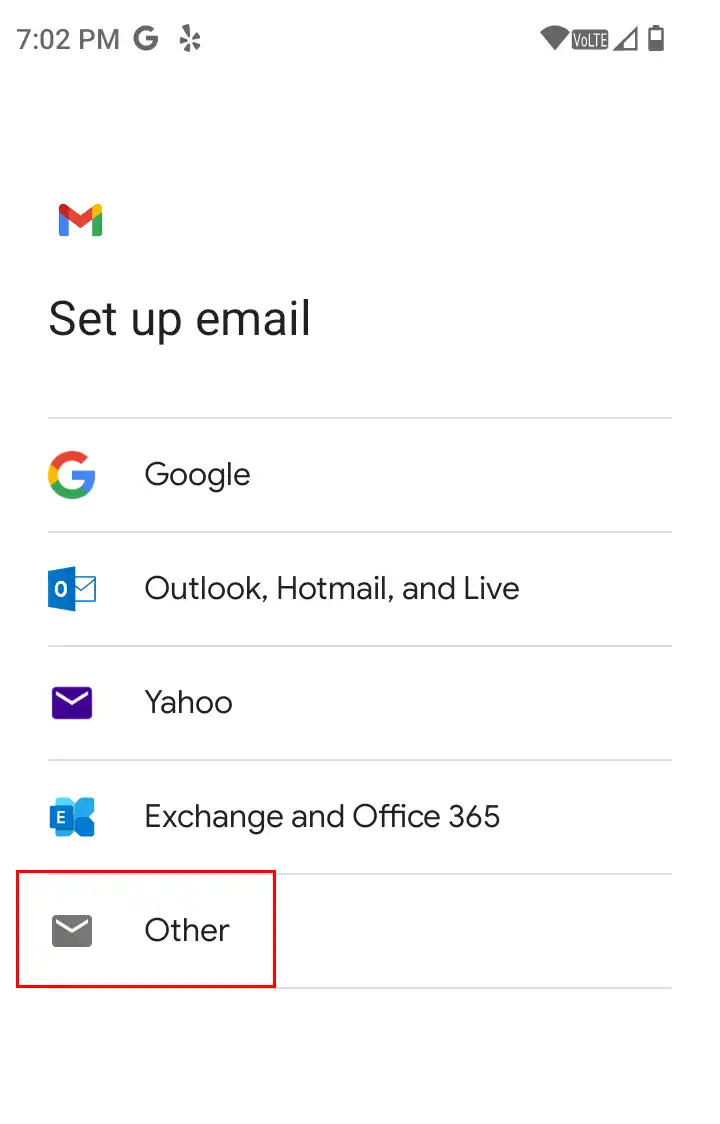
From the list of account types, pick Other.
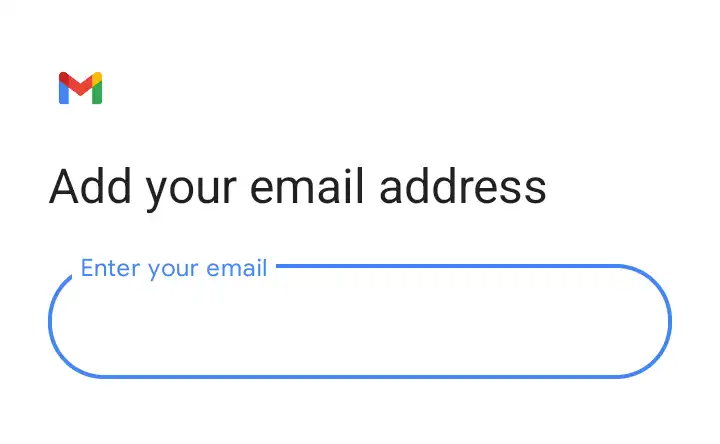
4. Enter your email address
Type your company email (for example, you@yourcompany.com).
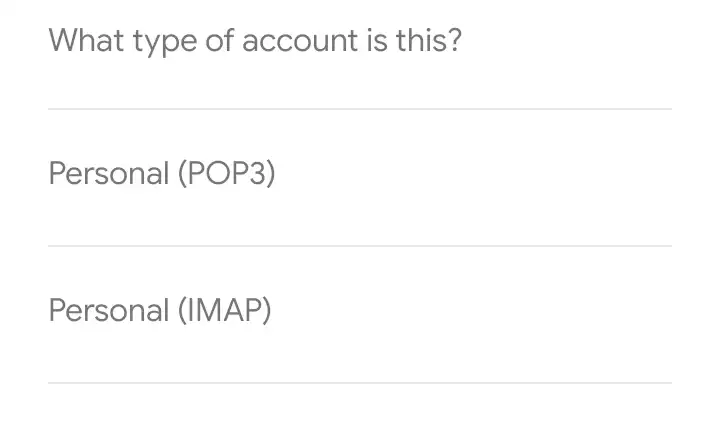
5. Choose IMAP
When the email protocols appear, we recommend selecting IMAP (it keeps your mail synced across devices). If you want to know more, see the difference between IMAP and POP3.
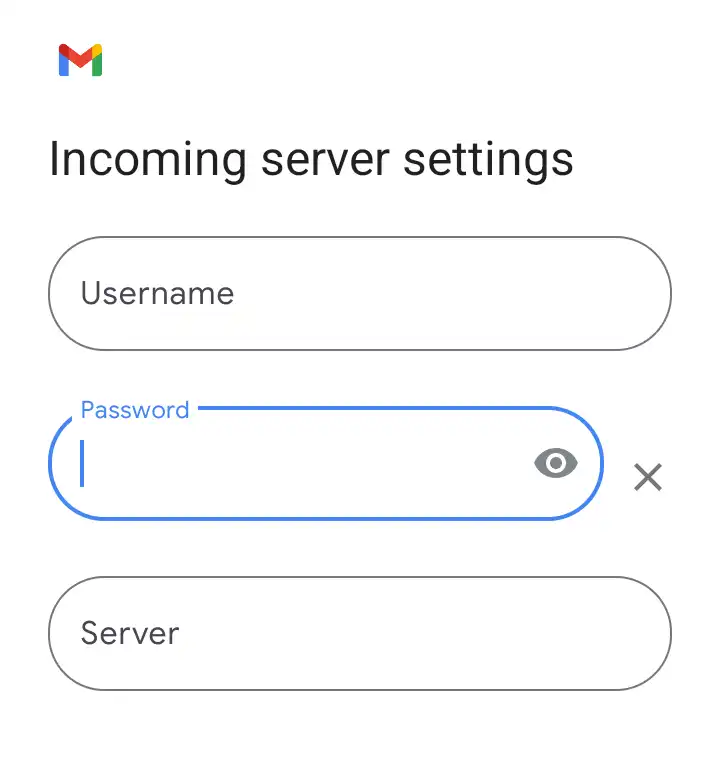
6. Configure the servers
The last step is entering the incoming and outgoing server settings:
- Username: your full email address
- Password: your email account password
- Server:
mail.yourdomain.com
We'll send you all of these values so you can complete the setup without any issues.
Once connected, just customize the name you want to appear and the sync frequency —and you're done.
Still stuck?
If you didn't find what you were looking for, write to us and we'll help with your specific case.