

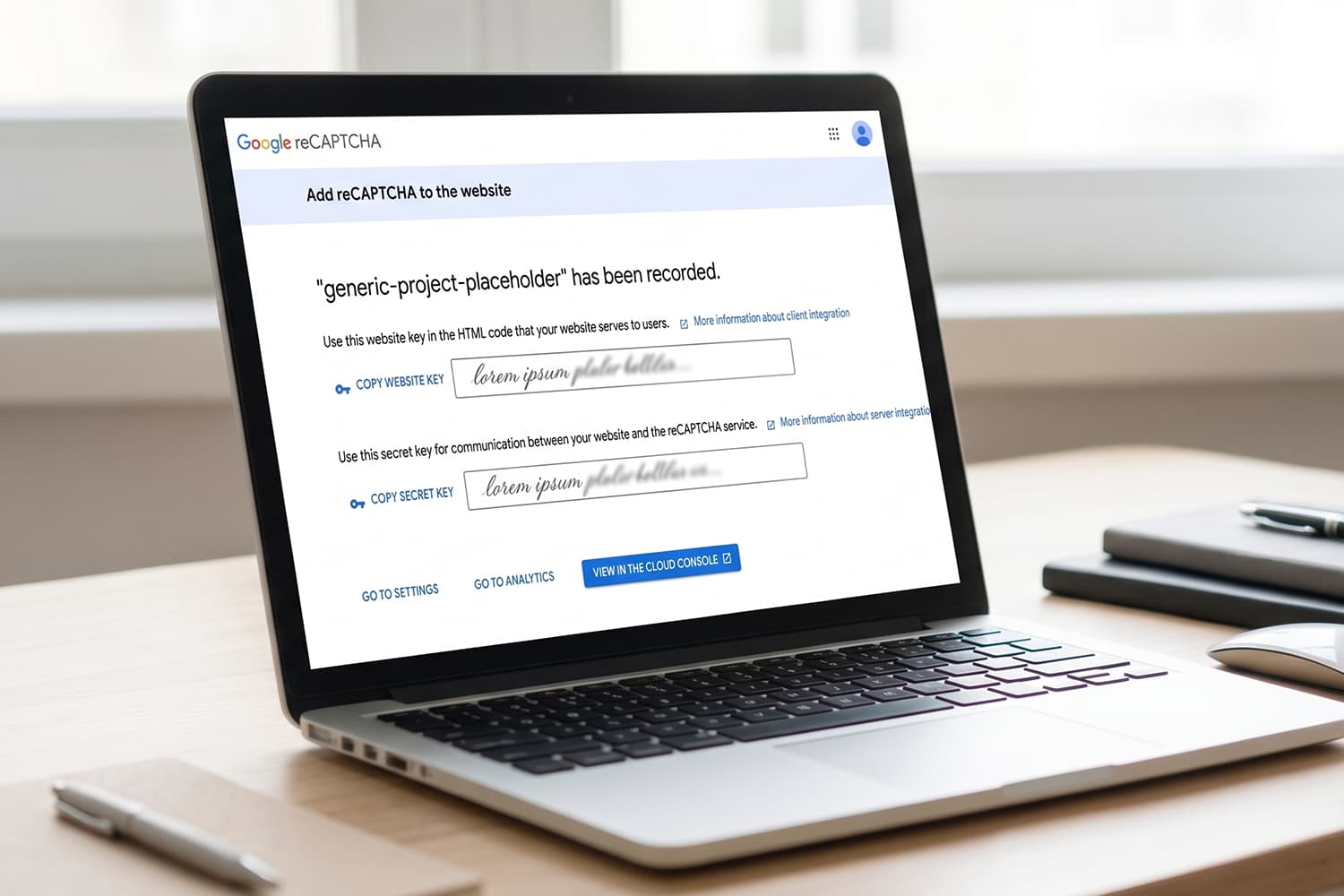
reCAPTCHA is Google's bot protection for your website —it helps stop spam, scraping and fraudulent form submissions. To add it to your site you need two keys, and here's how to generate them.
Create your keys
1
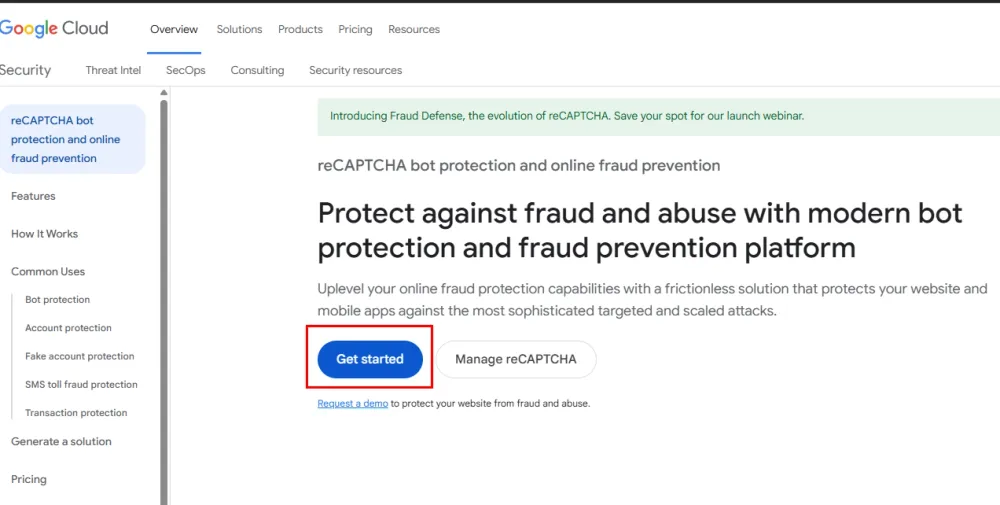
Open the reCAPTCHA console
Go to Google's reCAPTCHA / bot-protection page (cloud.google.com/security/products/recaptcha) and click Get started.
2
Name it (Label)
Enter a name to identify it —for example
my-website or Contact Form.3
Choose the reCAPTCHA type
Keep Score based (v3) selected if you want an invisible reCAPTCHA (recommended). Use Challenge (v2) only if you want the "I'm not a robot" checkbox.
4
Add your domains
Click + Add a domain and add your domain without
https:// —for example yourdomain.com. Adding the root domain usually covers its subdomains, but many people also add important ones like www.yourdomain.com.5
Select or create a Google Cloud project
Pick an existing project from the dropdown, or type a name to create a new one (e.g.
recaptcha-my-site). Then scroll down, accept the terms if shown, and click Submit.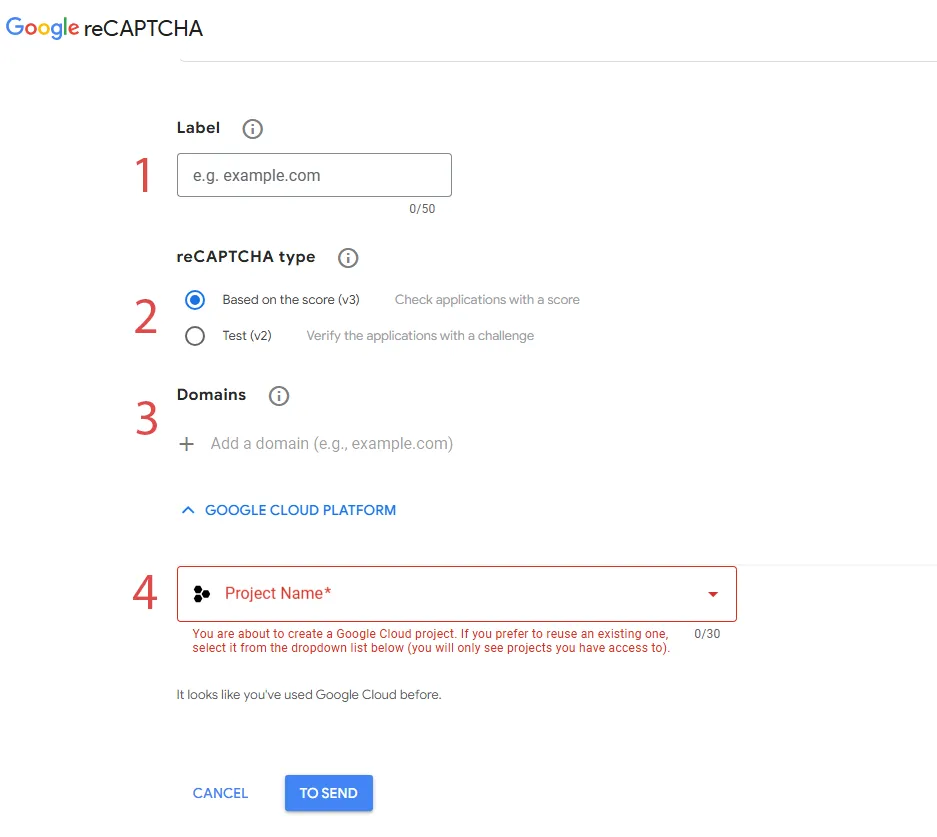
Save your two keys
Google will give you two keys —copy and store both:
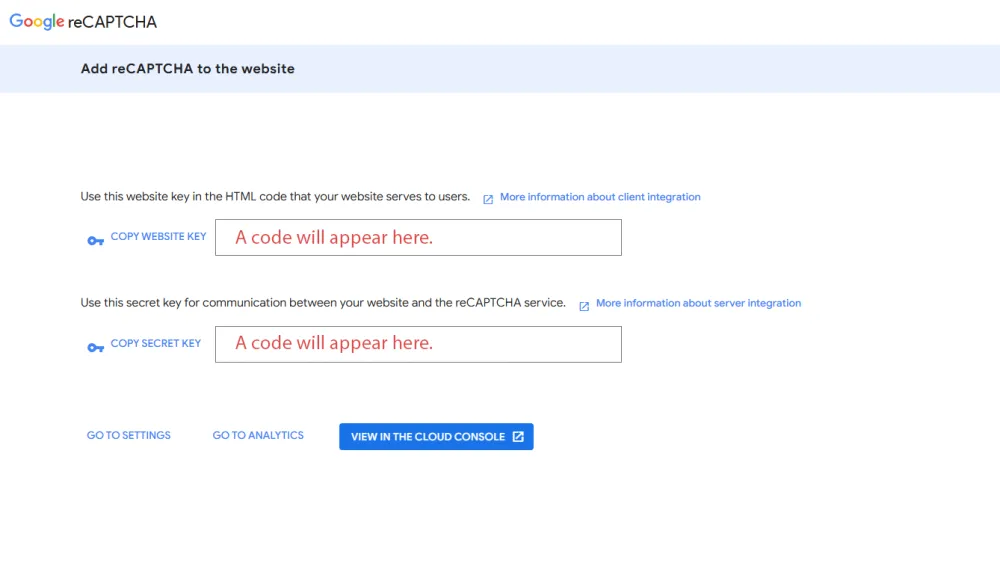
- Site key: goes in the frontend of your website (it's public).
- Secret key: goes in the backend/server. Never publish it.
Still stuck?
If you didn't find what you were looking for, write to us and we'll help with your specific case.